If you have ever sent a screenshot to AI and felt the answer focused on the wrong thing, you are not alone. The problem is usually not the image itself. The real issue is that the screenshot does not clearly show what matters, why it matters, and what kind of answer you want.
What you’ll learn
- Why screenshots are often misunderstood by AI
- The most common image-sharing mistakes
- How to make screenshots easier for AI and humans to understand
- Where annotation-based tools become useful
Bottom line
AI can inspect a screenshot, but it still struggles when the focus point, user intent, and surrounding context are unclear. The best image sharing method is not just “send the screenshot.” It is “show the exact area, explain the goal, and state what kind of answer you want.”
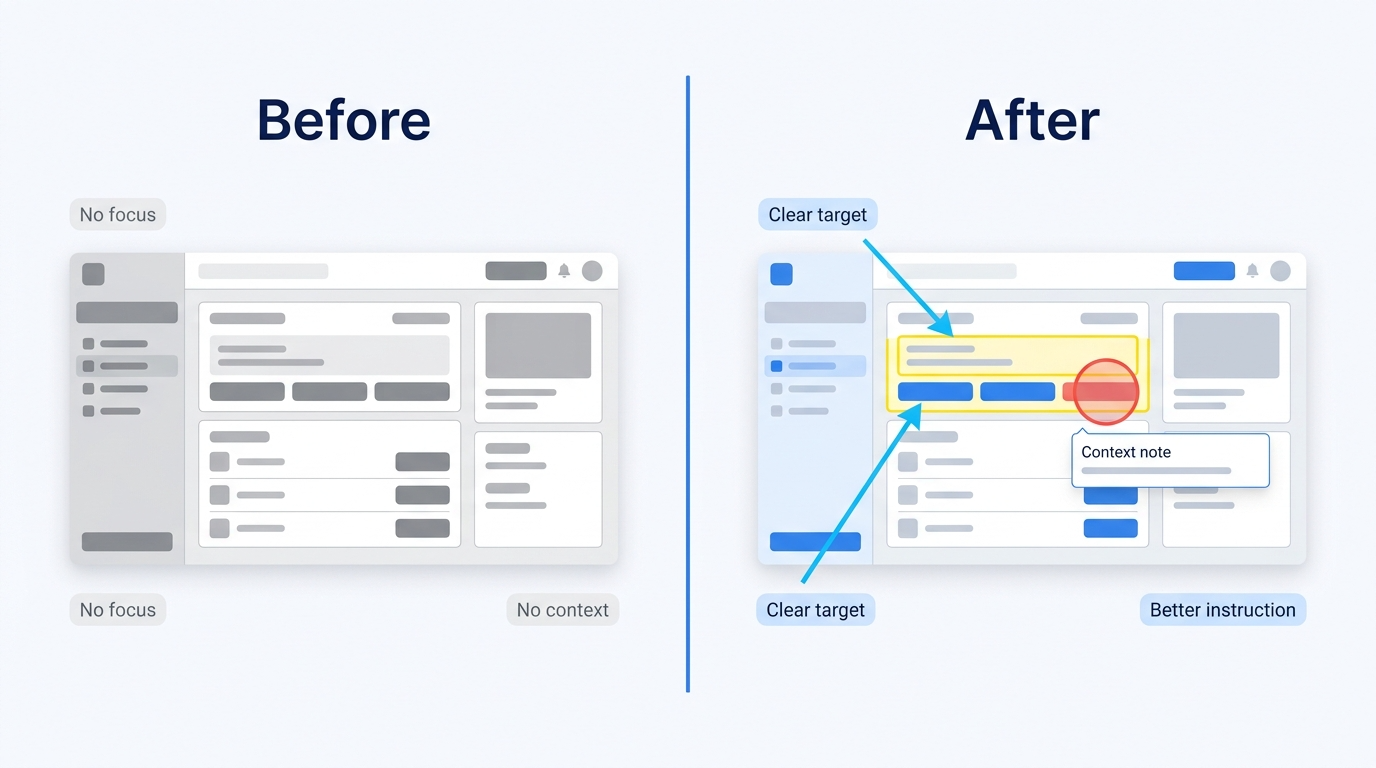
Problem 1: The focus point is unclear
When you send a full screenshot without annotation, AI has to guess what matters. On a busy screen, that often means it chooses the wrong button, field, error, or text block.
Typical examples
- “What is wrong with this screen?” with no highlight
- A wide capture with multiple possible problem areas
- A UI review request with no marked target
Problem 2: No context is attached
The same screen can mean completely different things depending on what happened before it. Was the user logging in, checking out, editing a setting, or debugging a failure? Without context, the answer becomes guesswork.
Minimum context to add
- What you were trying to do
- Where the problem occurred
- What you expected to happen
- What actually happened
Problem 3: The capture area is too large
Bigger screenshots feel informative, but they often add noise. Cropping or focusing on the relevant part improves clarity for both AI and human reviewers.
Problem 4: Important text is trapped inside the image
Error codes, URLs, file names, and setting values are often better sent as text too. AI may read image text, but direct text input is usually safer for precision.
Better sharing habits
1. Mark the exact area to inspect
- Use arrows
- Use highlights
- Use boxes
2. Keep one image to one intent
Do not combine multiple review goals into one screenshot if you can avoid it.
3. Add a short instruction
For example, prompts like the following are easier for AI to interpret correctly.
- Tell me why this button is disabled
- Explain what this error likely means
- Suggest how to improve this UI section
4. Use multiple images when sequence matters
For many issues, a before / during / after sequence is easier to understand than a single capture.
Where this matters most
| Situation | Why screenshots fail | Better approach |
|---|---|---|
| UI review | Focus point is unclear | Annotate the target area |
| Bug reporting | Reproduction context is missing | Add steps and expected outcome |
| AI assistance | The desired answer is unclear | Ask one specific question |
| Team handoff | Background assumptions differ | Add a short context note |
Why annotation tools help
The value of a screenshot is not only in the pixels. It is in the communication around those pixels. Annotation-first tools such as Kiritasu make it easier to show what matters, which reduces misinterpretation for both AI and people.
FAQ
Isn’t sending the screenshot alone enough?
Sometimes, but not consistently. The more complex the screen, the more likely AI is to focus on the wrong part unless you guide it.
Can AI read the text inside the image anyway?
Often yes, but that does not guarantee correct interpretation. Important values and questions are still safer when provided in text as well.
Next steps
If you want better answers from AI or cleaner team communication, change the workflow from “send a screenshot” to “send a focused, annotated screenshot with a clear question.”
- Kiritasu: Kiritasu — An annotation tool for adding arrows, highlights, and callouts before sharing screenshots